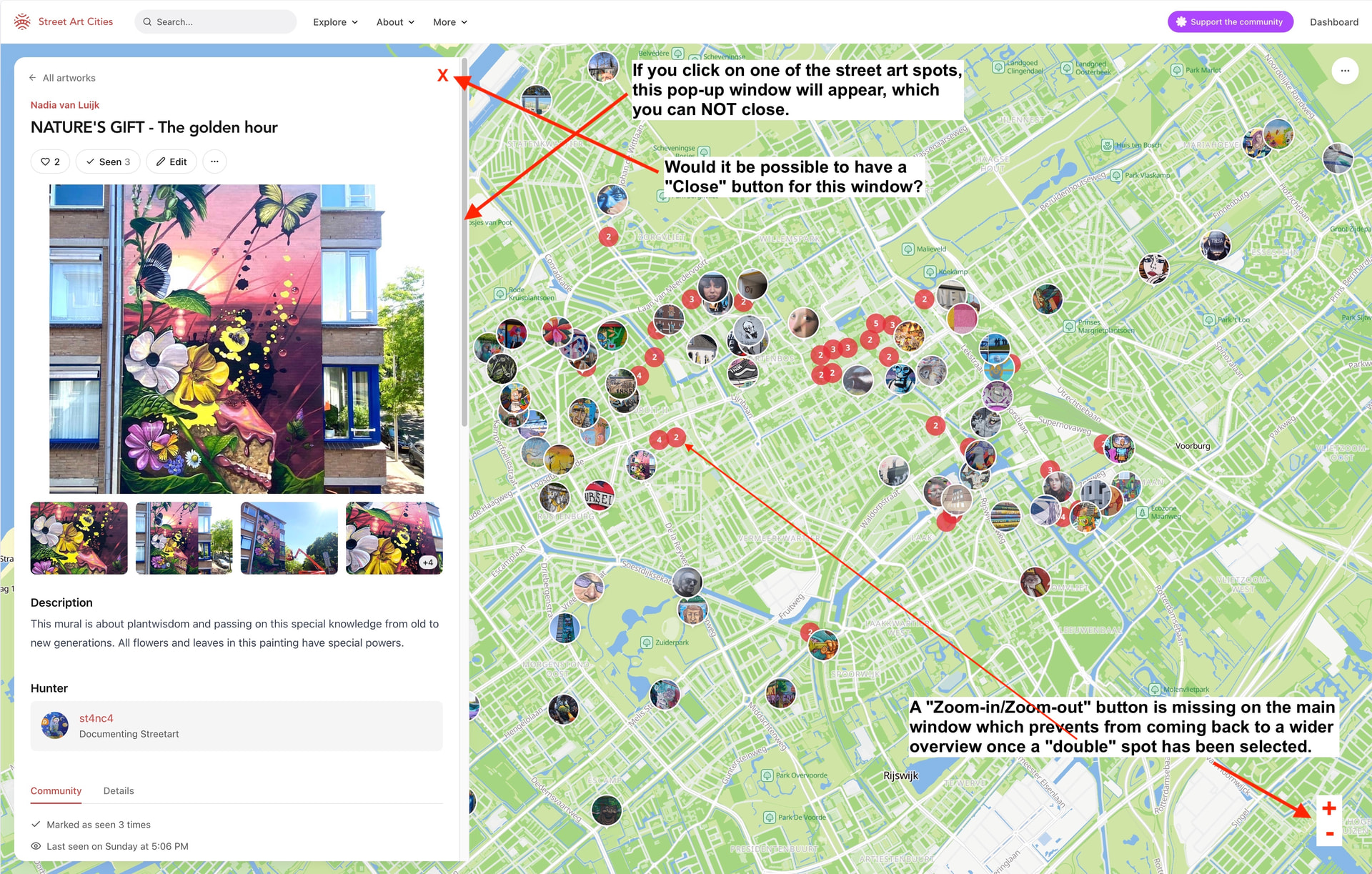
Would it be possible to add a “Close” button for the pop-up window which appears when a Street Art spot is selected on the map ?
Would it be possible to add a ‘Zoom in/Zoom out’ button in the right lower corner of the map to avoid having to use the mouse wheel, which may have been configured for a function other than ‘zoom’?
I have attached an image illustrating these two suggestions.
I also think these are improvements for the website. The lack of a close button is something that has bothered me several times as well, although I never reported it. One always has to click on the “All artworks” arrow to go back to a smaller pop-up window. Sometimes, in my opinon, one would actually like to be able to close the entire pop-up window. Good to see, that I am not the only one experiencing this.
Another separate suggestion of something that needs improving on the website. When adding info in Hunter mode, if I navigate away switch tabs or look at another app to get info it clears all fields when I switch back. Is there a way to fix that? I’m using the website from the link in the app to add new artwork on a mobile device.
It would be very helpful to be able to save a draft version of a post. Until I found more info without publishing it.
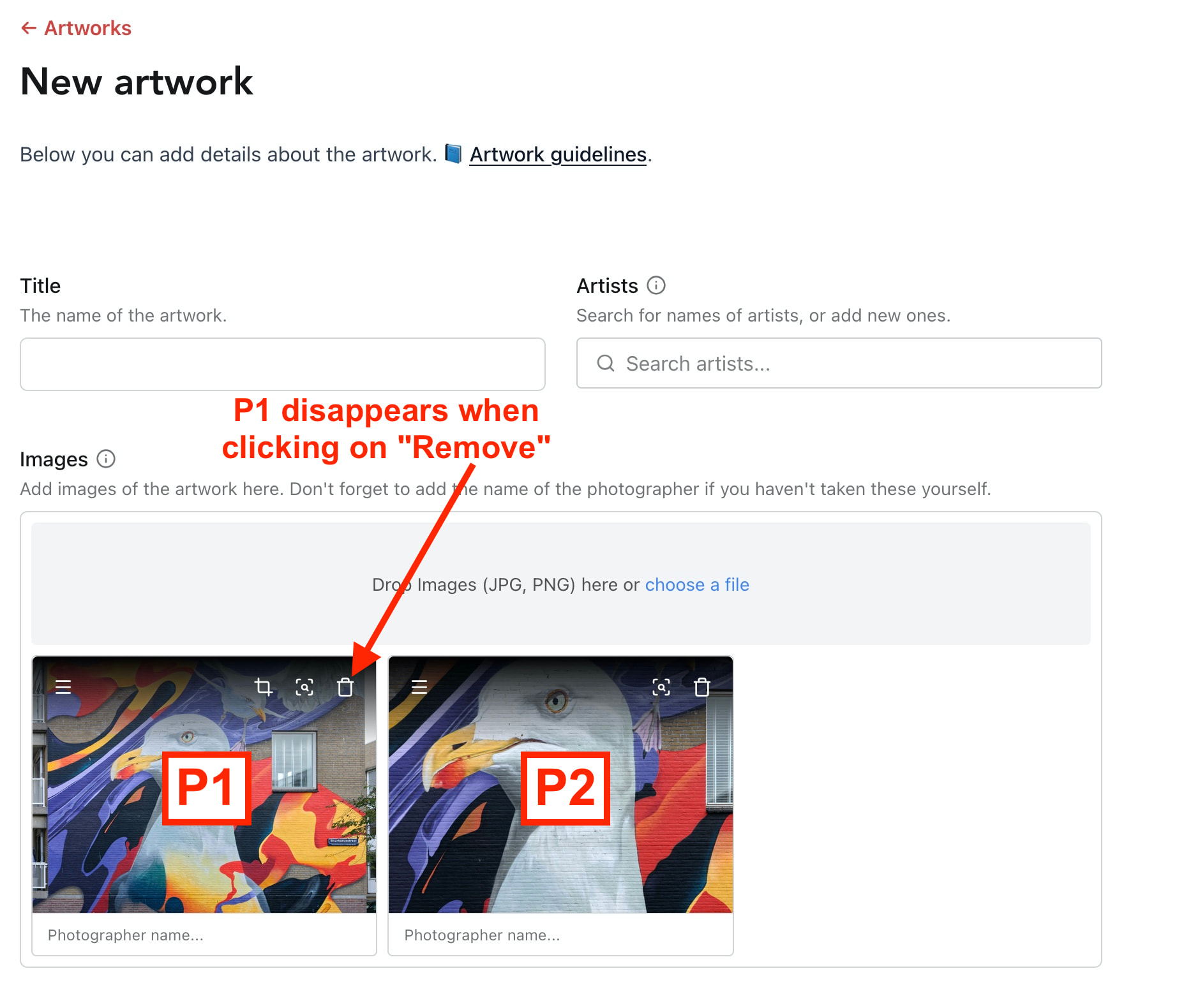
Regarding this specific window when you wish to add a new artwork:
When a set of pictures have been uploaded in one go, there is no way to reorder them so that the first one is a close view or a detail of the artwork, as recommended.
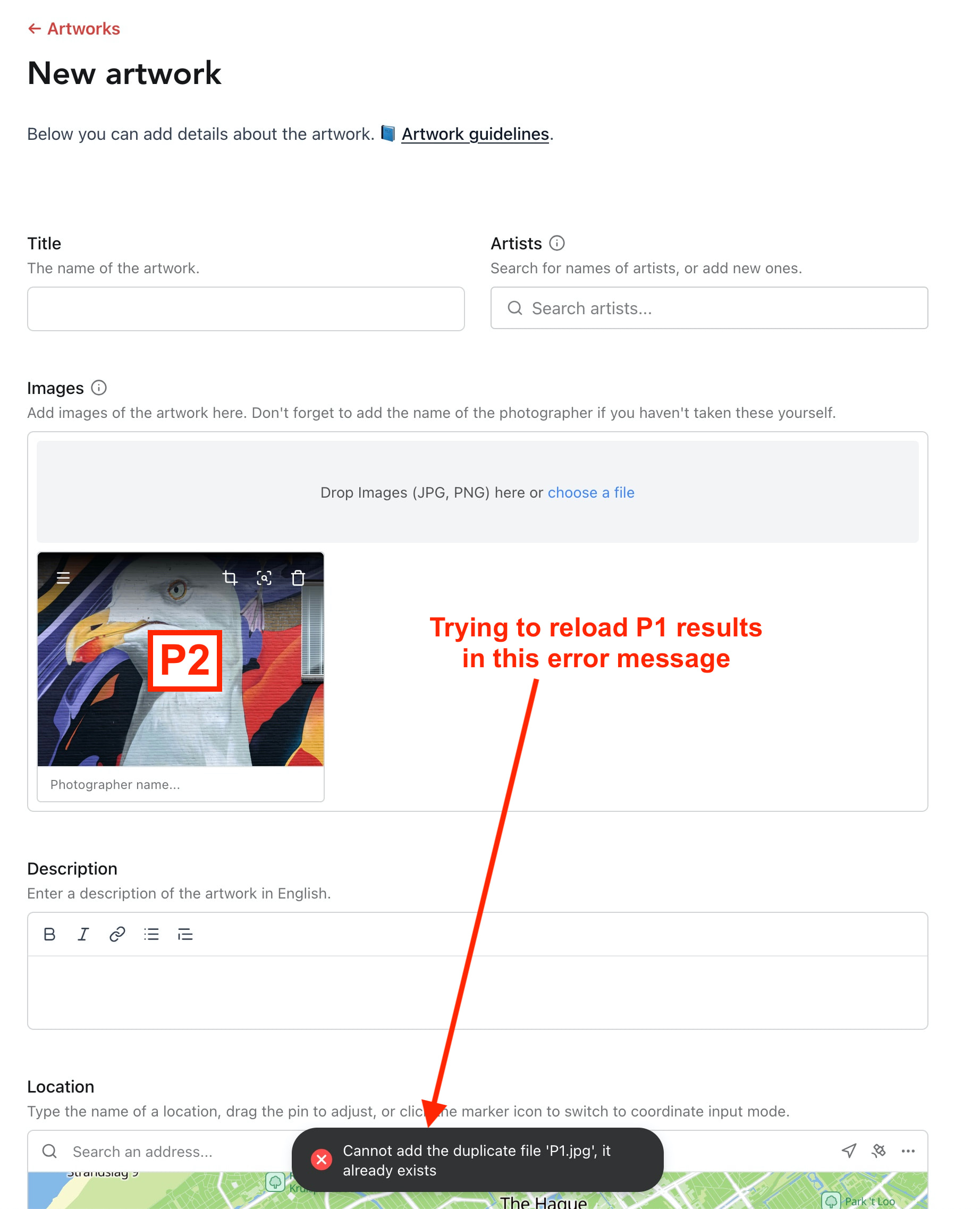
Suppose that the latter (with the close view) is at the second position in the row; if you move the first picture in the row to the bin, it disappears. BUT if you upload the latter picture again (to place it at the second position), an error message indicates that this picture have already been uploaded. The only way to circumvent this problem is to click on “Artworks” (left upper corner) and start from scratch (see attached screenshots).
You are absolutely right, Andrew. Thanks for the tip.
One tiny improvement could be to indicate that this icon is meant for “Reordering the pictures” because no hint is displayed when one scrolls on it (contrary to what happens for the 3 other icons) and nothing happens when one clicks on it.
So my initial problem is reduced to the wrong error message popping-up after having removed one picture and while trying to upload it again: a situation which rarely happens, I do agree !
I have had the same “Duplicate” error as you when a file upload has failed and have found that the way to fix is to Save the artwork (will be a draft if there are no images), then Edit it again to add the images that failed the first time.
I sometimes find images fail to load if I try to load too many at once, if it happens I just add them one at a time, wait for each to appear then do the next etc.